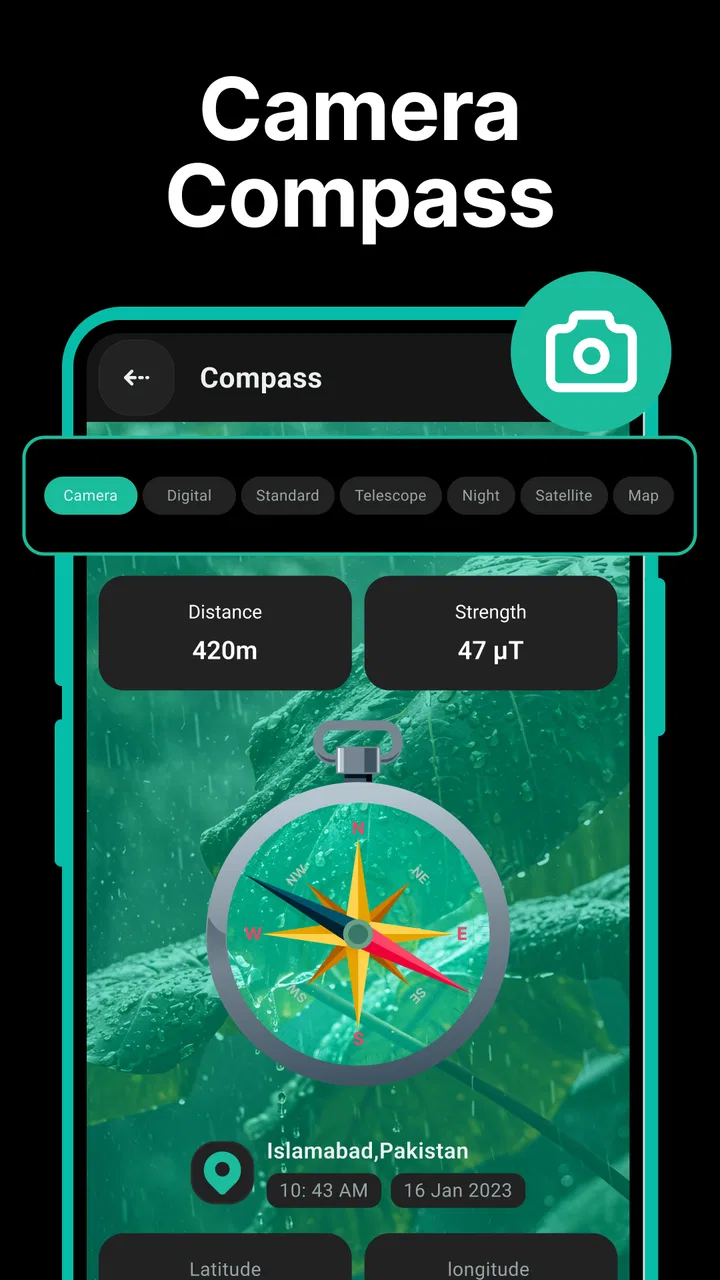
Digital Compass for Android
- 3.6
- Rating
- 50.00K
- Installs
- Free
- Price
 Analysis by App-foxy
I installed Digital Compass expecting a focused tool rather than a full navigation suite, and that is exactly the experience it aims to provide. Developed by Big Ocean Studio, this free Android app sits in the Maps & Navigation category and concentrates on one job: helping me identify the basic compass directions when I need a quick sense of orientation. It is available for Everyone and runs on Android 7.0 or newer, so its compatibility covers a wide range of devices.
That simplicity is both its main attraction and the first thing to understand. This is not a replacement for turn-by-turn navigation, a hiking map, or a route planner. I found it most useful as a small orientation aid: checking which way I am facing, matching a paper map to the landscape, or getting a general bearing before continuing with another navigation method. If that narrow purpose matches your needs, the app is easy to approach. If you expect live directions or location-based guidance, it is better to choose a more complete navigation app.
Where the first-use experience can become confusing
The most common point of friction with a digital compass is not the interface itself but the expectation that the reading will be immediately perfect. A phone compass depends on the device’s built-in sensors and on how the phone is held. When I first open a compass app, I avoid judging it while standing beside a car, near large metal objects, or with the phone pressed against another electronic device. Those surroundings can affect the reading and make a simple tool appear unreliable.
You May Also Like

 Blood Strike: 2.5 Anniversary
Blood Strike’s Loadouts Turn Every Drop Into a Tactical Gamble
A close look at Blood Strike’s custom loadouts: how fast access to signature weapons reshapes its battle royale rhythm, rewards preparation, and narrows the gap between fights.

 Pandora - Music & Podcasts
Pandora’s Music Is Easy to Start, but Harder to Recover
Pandora’s strength is its low-effort path from a seed to a station. Its weak spot is how much confidence it asks you to place in connection, setup, and quiet recovery.

 8 Ball Pool
 Is Built on Rivalries, Rematches, and Routine
A close look at the rivalries, rematches, shared routines, and unanswered safety questions that turn a quick pool match into a persistent mobile community.

 Samsung Music
’s Quiet Strength Is Playing What You Already Own
Its reach comes less from spectacle than from dependable access to a personal library. That simplicity is both the app’s strongest retention engine and its ceiling.

 AccuWeather: Weather Radar
AccuWeather Review: A Quick, Clear Forecast for Everyday Decisions
For everyday plans, the best forecast is the one you can understand quickly. AccuWeather makes rain timing, radar, and local conditions easy to act on, with a few trade-offs.

 Hill Climb Racing
Why Hill Climb Racing Still Turns Crashes Into One More Run
A tiny car, a bumpy hill and one more upgrade: Hill Climb Racing keeps resurfacing because its simple chaos makes every near-miss feel personal.
More From Our News Desk
View All News


Digital Compass presents itself as a straightforward way to see north, south, east, and west. That makes it approachable, but it also means the user has to supply some of the practical discipline that a more advanced navigation app might explain more clearly. I keep the phone flat in my hand, give the indicator a moment to settle, and compare the direction with something familiar, such as the position of the sun or a known street orientation. This is a better test than rotating the device quickly and deciding that every change is an error.
Another possible stumbling block is the difference between a compass direction and a route instruction. If the screen tells me I am facing east, it does not mean east is the correct direction for my destination. A compass answers “which way am I pointing?” rather than “which way should I travel?” That distinction matters when using the app outdoors, especially in an unfamiliar neighborhood. I use it as a reference alongside signs, maps, and landmarks, not as a complete travel plan.
The app’s average rating is 3.6 from around a thousand ratings, while the store page shows only a small number of written reviews. I read that combination as a useful warning to keep expectations realistic: the concept is simple, but the quality of a compass reading can depend heavily on the phone and the environment. The app deserves to be judged as a lightweight direction tool, not against the feature list of a full navigation platform.
What I check before blaming the app
When the pointer behaves strangely, I start with the phone rather than immediately reinstalling the application. I move away from magnetic objects, remove a case if it contains a strong magnetic attachment, and hold the phone level. I then rotate it slowly instead of making rapid movements. These steps are especially useful when the reading appears to lag, jumps between directions, or seems to settle only after several seconds.
A simple outdoor comparison can also reveal whether the problem is really inside the application. I choose a visible landmark whose position I know, such as a road that runs roughly north to south, and see whether the compass behaves consistently as I turn. I am not looking for laboratory precision; I am checking whether the direction changes smoothly and predictably. If it does, the app is probably doing its basic job and the earlier confusion came from the surroundings or how I held the phone.
It is also worth checking that the device itself supports the sensor behavior a compass needs. Android compatibility beginning with version 7.0 tells me the operating system is not limited to recent phones, but software compatibility does not guarantee that every handset has the same sensor quality. Two phones running the same Android version can produce noticeably different experiences because their hardware, cases, and calibration behavior differ.
Setting up a dependable routine
There is no complicated account process to get in the way of a quick check, which suits the app’s purpose. I open it when I need an immediate orientation reference and avoid treating the first displayed direction as final until the device has settled. The most useful setup habit is to establish a repeatable way of holding the phone. Keeping the screen parallel to the ground reduces unnecessary variation and makes it easier to compare one reading with the next.
For outdoor use, I prefer to test the compass before I start walking. If I am about to leave a station, campsite, or large building, I stand in an open area and identify the direction of my intended first movement. This prevents a common mistake: walking several minutes while looking at the screen, then discovering that the phone was being tilted or affected by nearby structures. A short check before moving is safer and less frustrating than trying to correct the reading while in motion.
For indoor use, I treat the result as approximate orientation. Buildings contain metal frames, appliances, wiring, and other sources of interference, so an indoor reading may take longer to stabilize. I use the app to answer practical questions such as which side of a room faces the street or how to align a printed map, but I would not use it alone for a demanding navigation decision inside a complex structure.
The current version is 1.0.12, and the app remains intentionally narrow in scope. That can make setup feel pleasantly light, but it also means there are fewer layers between the sensor and the direction display to help interpret an uncertain reading. My advice is to build the environmental check into the routine rather than expecting the application to explain every unusual result.
A useful workflow for everyday orientation
My preferred workflow has three stages. First, I open the app while stationary and hold the phone flat. Second, I rotate slowly until the direction display behaves consistently. Third, I put the phone away and use a landmark or street line to maintain my course. This avoids staring continuously at the screen, which is inefficient and can be unsafe near traffic or uneven ground.
That workflow is particularly handy in a large park. Imagine leaving a café and wanting to reach the northern entrance without following a full route. I can use Digital Compass to identify north, locate a visible path that generally leads in that direction, and then walk while checking signs and the surroundings. The app does not tell me which path is open or whether a barrier is ahead, but it gives me a quick directional anchor before I begin.
I also found it useful when reading a physical map. I place the map in a stable position, determine which way is north with the phone, and turn the map so its north marker matches the real-world direction. This is a small but practical advantage over relying on guesswork. It is also an example of where a simple compass can complement, rather than compete with, a mapping application.
For a traveler, the same method can help when exiting a building in a new city. Instead of choosing a street at random, I can establish the broad direction of a landmark and then use signs or a map for the detailed route. The key trade-off is that the app helps with orientation but does not know the road network, pedestrian access, closures, or destination distance.
Recovering when the reading looks wrong
If the direction changes wildly, I pause rather than repeatedly spinning the phone. I move to a clearer location, hold it level, and let the reading stabilize. I then compare it with a known landmark. If the behavior improves outside or away from metal, that points to environmental interference rather than a problem with the app.
If the reading remains inconsistent in several places, I close and reopen the app, check whether the phone is responding normally in other sensor-based functions, and restart the device if necessary. These are deliberately general steps: they do not assume a particular permission screen, calibration gesture, or manufacturer menu. Android phones vary, so I would avoid following a calibration instruction designed for a different handset unless it matches the device’s own guidance.
Keeping the app updated is also sensible when a newer version is offered through the normal store process, although I would not expect an update to overcome a missing or unreliable hardware sensor. The current release is 1.0.12, and my practical approach is to separate software troubleshooting from hardware and environment checks. That saves time and prevents a user from repeatedly changing the app when the real issue is the phone’s surroundings.
There is another recovery technique that is easy to overlook: stop using the display as a moving target. I place the phone on a stable surface for a moment, observe whether the direction settles, and then pick it up without twisting my wrist. This does not repair a sensor, but it helps distinguish hand movement from genuine instability. It also makes the result easier to explain if I am helping someone else troubleshoot their phone.
When another navigation tool is the better choice
Digital Compass is not the right choice when I need a route from one address to another. A map and navigation service is better for turn-by-turn instructions, estimated travel time, road names, traffic information, and changes to the route. The compass can still be useful beside that service, but it should not be expected to provide those functions.
It is also a weak fit for serious hiking or backcountry navigation if used alone. Outdoor navigation often requires offline maps, saved waypoints, elevation information, track recording, and a clear understanding of terrain. A basic direction display cannot replace those tools. For a short walk in a familiar area, it may be enough to orient myself; for a remote route, I would choose an application designed around maps and safety planning.
Even casual users may prefer a richer alternative if they want a location marker or a visual map. The advantage of this app is that it keeps the task focused. The disadvantage is that I must connect the direction to the world around me. That is fine when I already have a landmark or map, but less convenient when I am completely lost and need a destination-aware solution.
Who will get the most from this app?
I would recommend it to someone who wants a compact directional reference without the visual and functional weight of a full navigation suite. It is suitable for checking the orientation of a room, aligning a paper map, understanding which way a trail or street runs, or getting a broad bearing before consulting another source. The free price also makes it easy to try without committing to a subscription.
It can be a good choice for an older Android phone, provided the device has suitable compass hardware and behaves normally with sensor-based functions. Support for Android 7.0 or newer gives it broad software reach, and the Everyone content rating makes it appropriate for general household use. I could see it being useful for a student learning basic map reading or for a traveler who wants a quick orientation aid rather than another large travel application.
I would be more cautious about recommending it to someone who expects a polished professional instrument. The average rating suggests that experiences vary, and the app’s narrow design leaves the user responsible for interpreting the reading and dealing with interference. The presence of in-app purchases priced from $9.99 to $19.99 per item is another point to consider before assuming every part of the experience is entirely without cost. I would review the purchase screen carefully and decide whether the basic compass function already meets my needs.
People who dislike troubleshooting sensor behavior may also prefer a map application with more context. That is not because a simple compass is inherently poor, but because it asks the user to understand the difference between a phone sensor, a directional display, and actual navigation. Once that distinction is clear, the app becomes easier to use. Without it, the display can seem too limited or unreliable.
My practical verdict after using it
Big Ocean Studio has kept Digital Compass focused on a useful everyday task. I like that it does not pretend to be a complete navigation system. When I need to know which way I am facing, the app gives me a direct starting point, and its free availability makes that convenience easy to test on a compatible Android phone.
My recommendation comes with a clear condition: use it as an orientation aid, not as your only navigation plan. Hold the phone level, move away from magnetic interference, wait for the reading to settle, and confirm the direction against landmarks or a map. Those habits make a larger difference than repeatedly reopening the application. If the result remains unstable in several ordinary environments, the phone’s sensor or hardware is a more likely concern than the simple interface.
Digital Compass is best for quick directional checks, not destination guidance. I would install it for short, practical moments when a north-south-east-west reference is enough. I would skip it in favor of a full map, hiking navigator, or route planner when I need roads, terrain, live conditions, or a dependable safety backup. Within its modest purpose, it is approachable and convenient, but its value depends on using it with realistic expectations and a little attention to the phone’s surroundings.
FAQs for Digital Compass for Android
01What is the primary function of the Digital Compass app?
The Digital Compass app is designed to provide users with precise directional guidance using the built-in sensors of their Android device. It offers accurate readings for navigation, whether you're hiking, driving, or simply exploring a new city. The app also includes additional features like location tracking and map integration to enhance your navigational experience.
02Does the Digital Compass app require an internet connection to work?
No, the Digital Compass app primarily relies on the device's internal sensors, such as the magnetometer and accelerometer, to function. This means it can provide accurate directional readings without needing an internet connection, making it ideal for use in remote areas where connectivity may be limited.
03Is the Digital Compass app compatible with all Android devices?
While the Digital Compass app is designed to work on a wide range of Android devices, compatibility may vary based on the hardware specifications of your phone or tablet. Devices without a magnetometer may not provide accurate compass readings. It's recommended to check the app's requirements in the Google Play Store before downloading.
04What are some additional features of the Digital Compass app?
In addition to basic directional guidance, the Digital Compass app may include features such as map integration, location logging, and augmented reality views. Some versions also offer customizable display options, like different themes or layouts, to suit user preferences. These features help enhance both the functionality and user experience of the app.
05Are there any privacy concerns with using the Digital Compass app?
The Digital Compass app generally requires minimal permissions, primarily accessing sensors to provide accurate readings. However, if the app includes location tracking or map features, it might request access to your location data. Always review the privacy policy and permissions requested during installation to ensure your data is handled appropriately.
Pros
- Accurate location tracking.
- User-friendly interface.
- Minimal battery usage.
- Customizable compass themes.
- Works offline effectively.
Cons
- Ads can be intrusive.
- Limited advanced features.
- In-app purchases for some themes.
- No voice navigation support.
- Requires GPS for best accuracy.

Digital Compass for Android
Gallery